

Looking for the best Marathon settings for PC? Whether you’re grinding extraction runs or sweating in PvP, optimizing your graphics and audio can give you smoother FPS and a real competitive edge. We tested the latest build to bring you the ultimate performance guide for mid-range gaming PCs.
TL;DR – Quick Best Settings
- Graphics Preset: High
- DLSS: DLAA (or FSR Native AA for AMD)
- Motion Blur: Off
- Shadows: High
- Ambient Occlusion: Medium
- Nvidia Reflex: On
- Music Volume: Lower to 5 for better focus
Table of Contents
Best Marathon Settings for PC – Video & Graphics
Marathon isn’t a hardware killer, but getting consistent frame rates matters in a PvP extraction shooter. While it’s not as esports-focused as CS2 or Valorant, smooth performance and clean visuals will absolutely improve your reaction time.
Recommended Graphics Settings (1080p Mid-Range PC)
| Setting | Recommended | Why? |
|---|---|---|
| Graphics Quality | High | Best balance of visuals & FPS |
| DLSS / FSR | DLAA / FSR Native AA | Sharper full-resolution image |
| Motion Blur | Off | Improves clarity in gunfights |
| Ambient Occlusion | Medium | Saves FPS with minimal visual loss |
| Shadows | High | Important for player visibility |
| Nvidia Reflex | On | Reduces input lag |
On an RTX 3070 system at 1080p, these settings delivered ~84 FPS average with 60 FPS 1% lows, which is more than playable for competitive matches.
Low vs High vs Highest – Is It Worth It?
Interestingly, switching between presets barely changes FPS. The main differences are:
- More fog and rain effects on higher presets
- Cleaner visibility on Low (can help in PvP)
- Slightly richer lighting at Highest
If you’re playing purely for competitive advantage, Low preset might actually give clearer sightlines.
Best Marathon Sound Settings for Competitive Play
Marathon’s atmosphere is driven heavily by sound design. But in PvP, clarity matters more than vibes.
Recommended Audio Settings
- Game Volume: 10
- SFX Volume: 8
- Dialogue Volume: 5
- Lobby Music: 7
- Gameplay Music: 5
- Voice Chat: 7
- Mute When Not Focused: Off
Marathon Steam Deck Compatibility
Currently, Marathon is not Steam Deck compatible due to BattlEye anti-cheat lacking Linux support.
However, Windows-based handhelds like the ASUS ROG Ally or Xbox Ally X can run it. Given the moderate system requirements, performance should be solid on modern handheld hardware.
Does Marathon Need an SSD?
No, Marathon doesn’t strictly require an SSD. But installing it on one will:
- Improve load times
- Reduce stutter when loading assets
- Provide smoother overall gameplay
Even a budget SSD makes a noticeable difference over HDD.
How to Monitor FPS in Marathon
To track performance changes while tweaking settings:
- In-game FPS counter: Enable in settings
- Nvidia: Install Nvidia App → ALT + R
- AMD: CTRL + SHIFT + O
- CapFrameX: For detailed frame time analysis
Note: Nvidia Frameview may cause input issues in Marathon currently.
Final Thoughts – Competitive or Cinematic?
The best Marathon settings for PC ultimately depend on your goal:
- Competitive players: Low preset + DLSS Balanced + Music Off
- Balanced experience: High preset + DLAA + Medium effects
- Visual enjoyers: Highest preset + Native AA
Marathon is surprisingly well-optimized. You don’t need a top-tier GPU to get smooth performance — just smart settings.
Ready to Drop In?
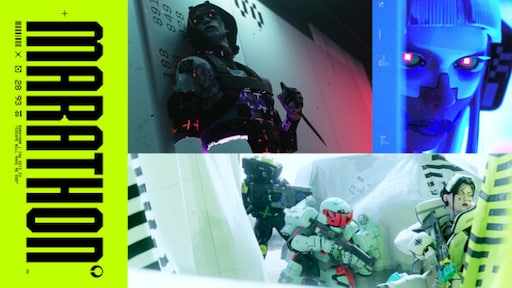
Marathon
Release Date: March 05, 2026
Genres: Shooter