





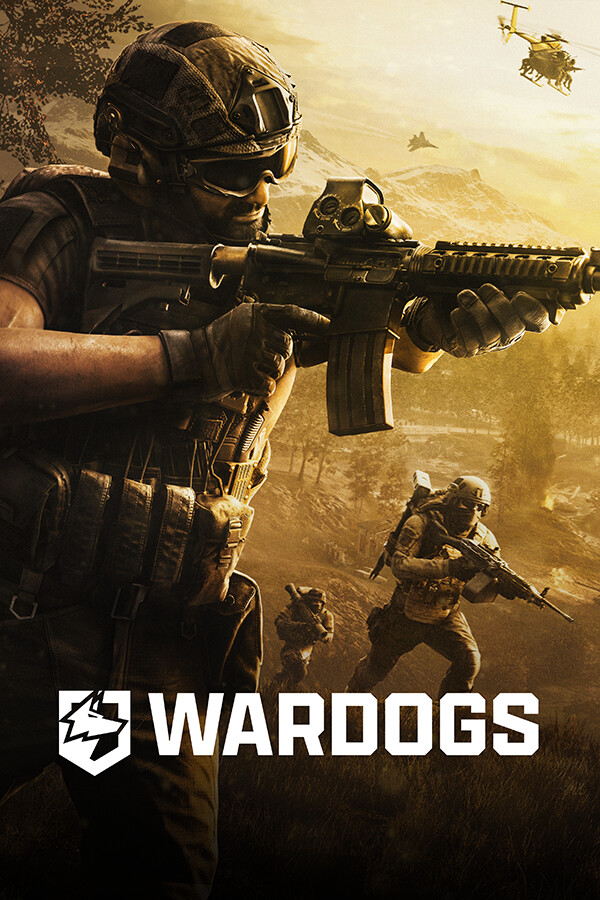
The best WARDOGS PC settings are not simply “everything on Low.”
For competitive play, the goal is to reduce expensive visual effects while preserving the things that help you read distant players, terrain and movement. Start with DLSS or FSR on Quality, disable Global Illumination, VSync, Picture-in-Picture Scope, Motion Blur, Depth of Field, Lens Flare and Bloom, then lower Reflections, Effects and Particle Spawn Rate before sacrificing textures.
A good baseline is around 95–110 FOV, Medium Mesh Detail, Medium or High View Distance, Medium Shadows and High textures if your VRAM allows it. If performance is still poor, drop upscaling to Balanced and reduce View Distance and Shadows before turning the entire game into a blurry Potato preset.
WARDOGS can get busy very quickly.
Up to 100 players can be fighting across a destructible battlefield while vehicles, explosions, smoke and collapsing structures compete for both your attention and your GPU.
That makes graphics tuning more important than simply chasing the highest number in the FPS counter.
A setting that gives you five extra frames but makes a distant player harder to distinguish from the background may actually make you less effective.
How this guide was assessed
This guide is based on the current WARDOGS graphics menu documented after the Early Access launch, official Steam system requirements and practical competitive-FPS priorities. Exact performance varies by CPU, GPU, resolution, driver version and the amount of destruction or player activity on screen, so these settings should be treated as a strong starting point rather than a universal benchmark.
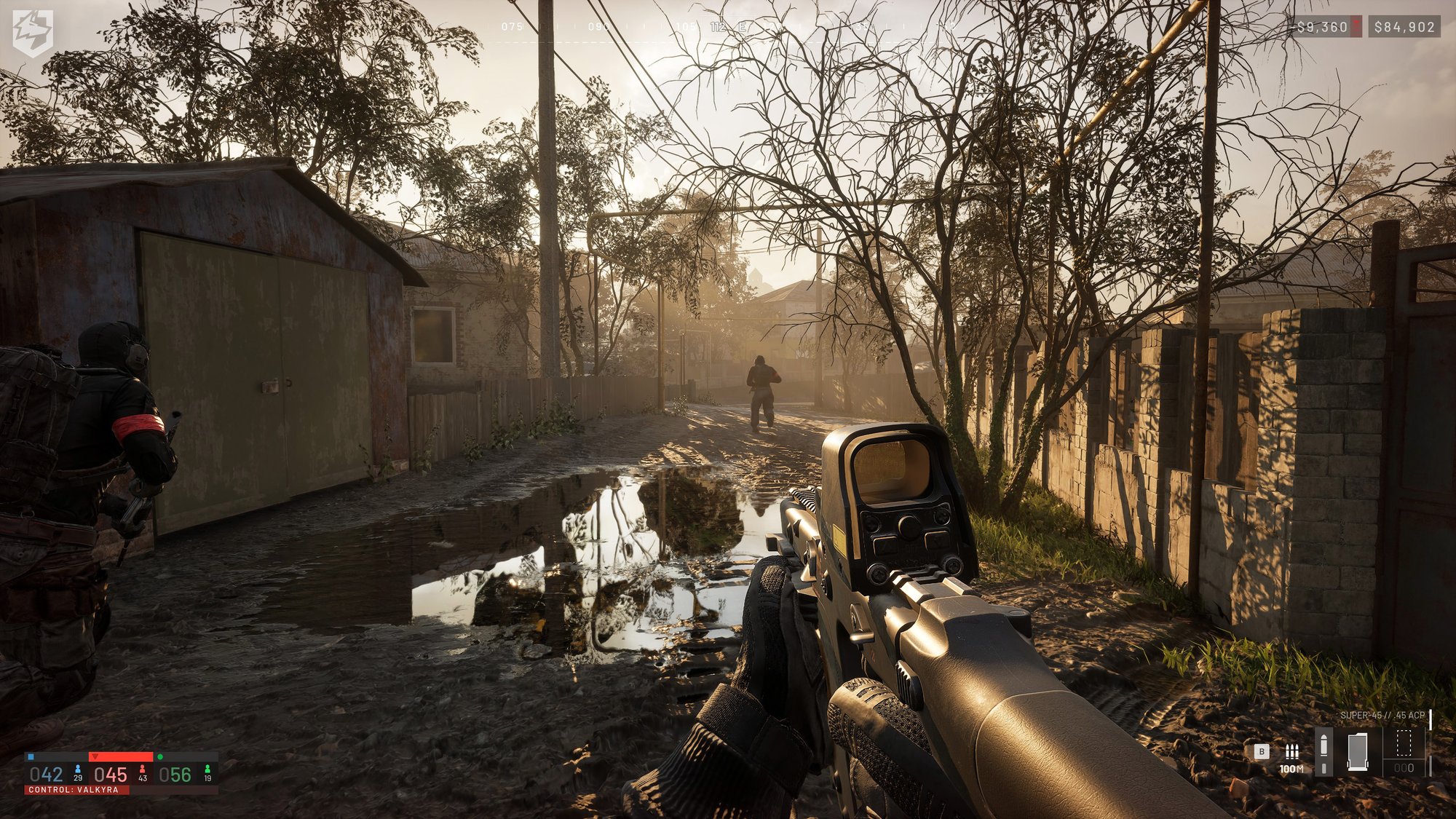
| Setting | Recommended | Why |
|---|---|---|
| FOV | 95–110 | Good awareness without making distant enemies excessively small |
| Picture-in-Picture Scope | Off | Avoids rendering a second scene through magnified optics |
| VSync | Off | Reduces unnecessary input latency |
| DLSS / FSR | Quality | Best starting balance between FPS and long-range clarity |
| Mesh Detail | Medium | Keeps geometry readable without overspending performance |
| View Distance | High / Medium | Important in long-range fights |
| Global Illumination | Off | One of the cleaner GPU savings |
| Shadows | Medium | Good compromise between performance and readability |
| Reflections | Potato | Very little competitive benefit |
| Effects / Particles | Low / Potato | Helps during explosions and heavy destruction |
| Textures | High if VRAM allows | Usually worth keeping sharper before sacrificing image clarity elsewhere |
Table of Contents
Best WARDOGS PC settings at a glance
If you want a competitive preset without spending half an hour testing every slider, start here:
- Display Mode: Fullscreen or Windowed Fullscreen
- Frame Rate Limit: Off, unless you need to stabilize frame times
- VSync: Off
- FOV: 95–110
- Picture-in-Picture Scope: Off
- NVIDIA Reflex: Enabled on supported NVIDIA GPUs
- DLSS / FSR: Quality
- Frame Generation: Off initially
- Mesh Detail: Medium
- View Distance: High if performance allows, otherwise Medium
- Shading: Low
- Global Illumination: Off
- Shadows: Medium
- Reflections: Potato
- Effects: Low or Potato
- Particle Spawn Rate: Low or Potato
- Post-Processing: Low
- Motion Blur: Off
- Depth of Field: Off
- Lens Flare: Off
- Bloom: Off
- World / Character Textures: High if VRAM permits
- Texture Filtering: Medium
Do not treat this as an immutable esports preset.
The best configuration depends on whether you are GPU-limited, CPU-limited or simply hitting unstable frame times during the busiest fights.
What is the best FOV in WARDOGS?
Start between 95 and 110 FOV.
WARDOGS allows FOV values up to 120, but maximum FOV is not automatically better.
A wider field of view gives you more peripheral information, which is useful when fighting around buildings, roads and multiple approach angles.
The downside is that distant targets appear smaller on your display.
That matters in WARDOGS because engagements can stretch well beyond typical close-range arena-shooter distances.
If you spend a lot of time using rifles at range, 95–100 is a sensible starting point.
If you prefer closer infantry fighting and value peripheral vision more heavily, test 105–110.
Only push toward 120 if the smaller apparent target size does not bother you.
Weapon View Model Scale
This setting changes how much screen space your weapon model occupies.
If the gun blocks too much of your lower or side vision, adjust View Model Scale and test it in the Firing Range.
This is mainly a comfort and visibility option rather than a major FPS tweak.
Vehicle FOV
If you regularly use vehicles, increasing both first-person and third-person Vehicle FOV can improve situational awareness.
That is particularly useful when several infantry squads and vehicles are operating around the same Control Zone.
Turn off Picture-in-Picture Scope
This is one of the easiest recommendations in the entire guide.
Disable Picture-in-Picture Scope if you want more FPS.
The feature renders a separate view through the optic rather than simply magnifying the existing image.
That means your GPU effectively has more scene rendering work to do whenever you aim through supported magnified optics.
In a game already dealing with vehicles, destruction, smoke and large numbers of players, that extra work can be noticeable.
High-impact change: disable Picture-in-Picture Scope before lowering textures or heavily reducing resolution quality.
Display mode, FPS cap and VSync
Fullscreen vs Windowed Fullscreen
Windowed Fullscreen is convenient if you regularly Alt+Tab between WARDOGS, Discord, browsers or other applications.
Fullscreen is worth testing if your priority is maximum performance and minimum latency.
The difference can vary between Windows versions, GPUs and drivers, so there is no reason to force one mode if the other behaves better on your system.
Should you cap FPS?
If you simply want the highest possible frame rate, leave the Frame Rate Limit off.
There is one important exception.
If your system constantly swings between very different frame rates, a sensible cap can produce more consistent frame times and make the game feel smoother even though the maximum FPS number is lower.
For example, a stable capped experience can feel better than constantly jumping between much higher and much lower values.
Turn VSync off for competitive play
VSync can introduce additional input latency.
For a multiplayer FPS, that is usually a poor trade.
Set VSync to Off.
If your monitor supports G-Sync or FreeSync, use the appropriate adaptive-sync setup for your display and GPU instead.
Should you use NVIDIA Reflex?
If your NVIDIA GPU supports it, enable NVIDIA Reflex.
Reflex is designed to reduce system latency by improving the relationship between CPU and GPU rendering work.
For a shooter, that is exactly the type of optimization you generally want.
Start with the normal Enabled setting and establish a stable baseline before experimenting with more aggressive modes.
Do not change five latency-related options at once and then try to guess which one actually improved the game.
DLSS vs FSR in WARDOGS
Upscaling is one of the easiest ways to gain performance while preserving a relatively sharp output image.
NVIDIA RTX: start with DLSS Quality
For supported RTX cards, DLSS Quality is the best first step.
It provides extra performance without immediately sacrificing the long-range image clarity that matters in WARDOGS.
AMD and other supported GPUs: start with FSR Quality
FSR Quality follows the same basic logic.
Use Quality first, check whether performance is sufficient, then move to Balanced if you still need additional FPS.
Avoid aggressive Performance modes unless necessary
Performance and Ultra Performance upscaling can substantially reduce the internal rendering resolution.
That can be acceptable when hardware is severely limited, but WARDOGS frequently asks you to identify players at range.
A softer, less stable distant image can make spotting targets harder.
Do not trade visibility for FPS until you actually need to.
Should you enable Frame Generation?
Frame Generation can make the displayed frame rate look much higher on supported hardware.
However, generated frames do not replace the need for a healthy base frame rate and can add latency to the experience.
For competitive play, the safer approach is:
- Disable Frame Generation.
- Tune the game until the base FPS feels stable.
- Enable Frame Generation afterward.
- Compare responsiveness and visual smoothness.
- Keep it only if you prefer the trade-off.
If your native or upscaled base frame rate is already very low, Frame Generation should not be treated as a magic fix for responsiveness.
Best WARDOGS graphics quality settings
Mesh Detail: Medium
Medium preserves enough character and environmental geometry for a readable image without spending additional performance on detail that is difficult to notice during an active firefight.
View Distance: High if you can afford it
View Distance deserves more caution than many other quality settings.
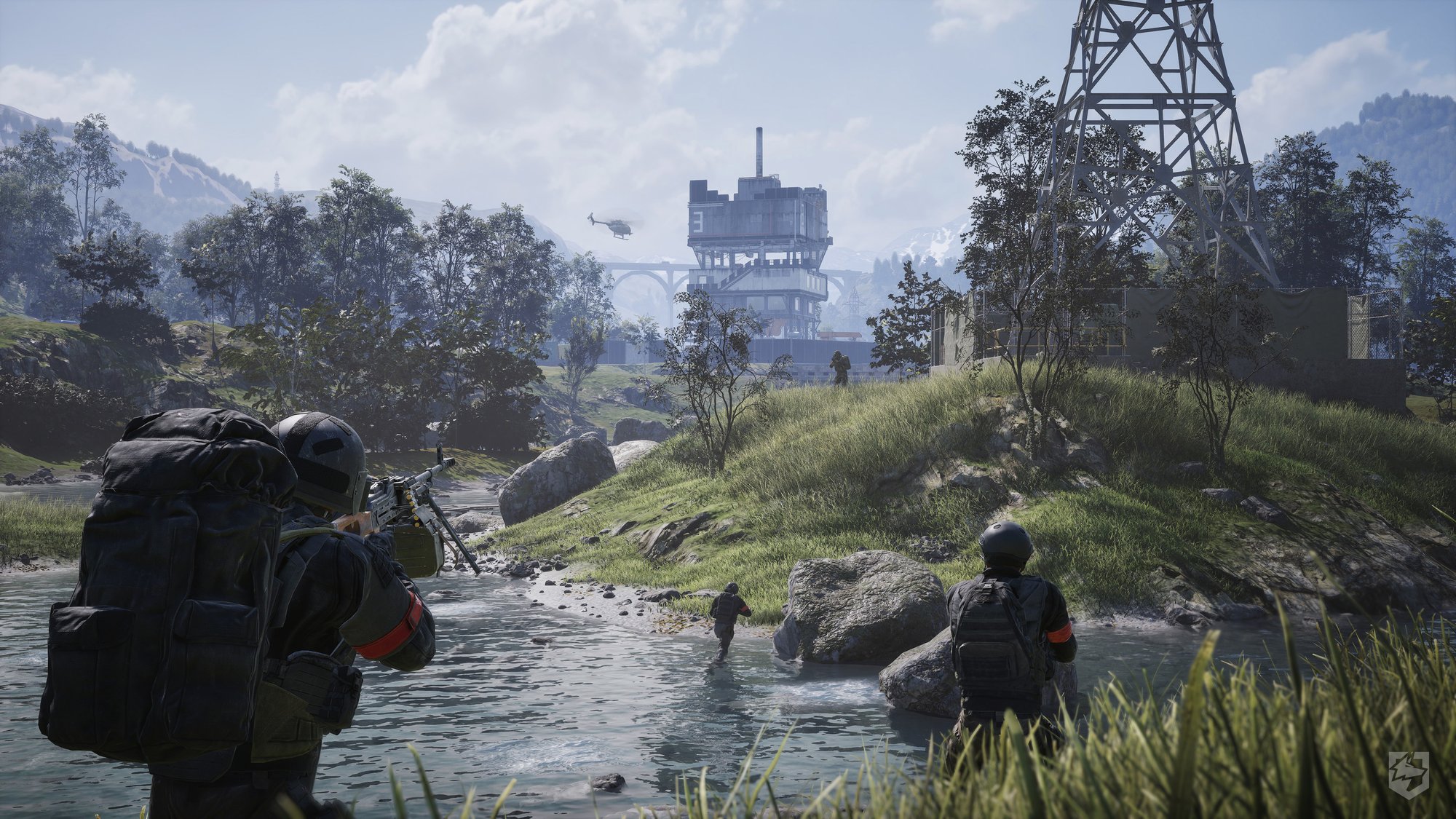
WARDOGS has large environments and long sightlines.
Set it to High if your system has enough headroom.
Drop to Medium when FPS matters more.
Do not make View Distance the first setting you destroy just because conventional “competitive settings” guides tell you everything should be Low.
Shading: Low
Shading quality can usually be reduced without heavily affecting target readability.
Low is therefore a sensible performance-focused setting.
Global Illumination: Off
Disable Global Illumination.
It is one of the more GPU-expensive visual options and contributes much less to competitive readability than things like resolution quality or sensible View Distance.
Shadows: Medium
Medium is a good default.
It preserves a more coherent image while saving performance compared with higher presets.
On weaker PCs, Low is the next logical step.
Reflections: Potato
Reflections are easy to sacrifice.
They can consume GPU resources while providing very little information that helps you win a firefight.
Set Reflections to Potato.
Effects and Particle Spawn Rate: Low or Potato
WARDOGS can become especially demanding when artillery, rockets, destruction, vehicle weapons and smoke effects all overlap.
Lowering Effects and Particle Spawn Rate helps protect your frame rate during exactly the situations where sudden performance drops are most annoying.
Post-Processing: Low
Low is a better first choice than Potato because it still keeps the image reasonably presentable while removing unnecessary visual overhead.
If you are desperate for performance, Potato remains an option.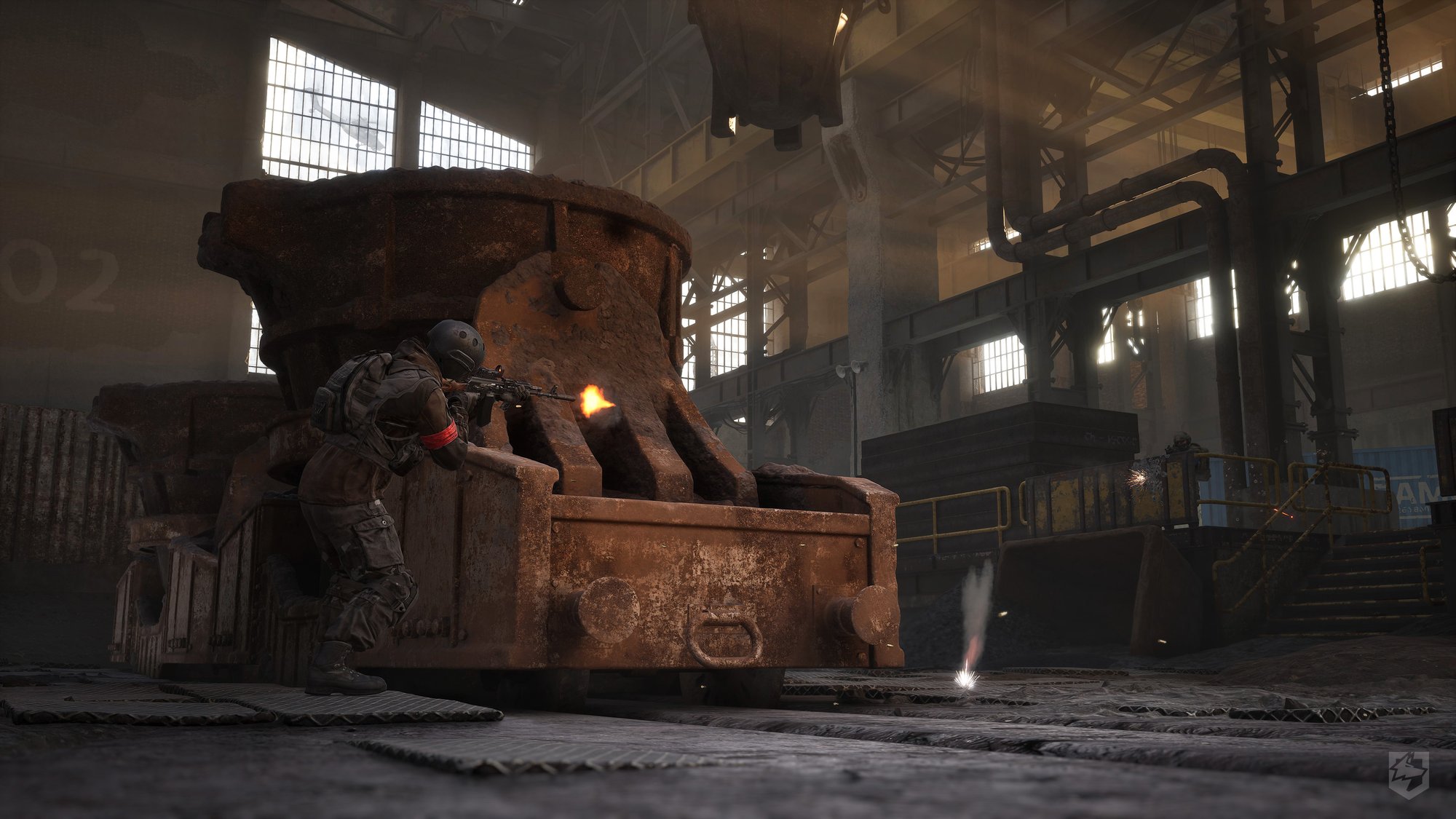
Turn these four WARDOGS settings off
There are four visual effects that are easy to remove from a competitive setup:
- Motion Blur: Off
- Depth of Field: Off
- Lens Flare: Off
- Bloom: Off
Why disable Motion Blur?
Because clarity while moving is more valuable than cinematic smearing in a competitive FPS.
Why disable Depth of Field?
Artificially blurring parts of the image can work well for screenshots and cutscenes.
It is much less useful when you are scanning a battlefield for movement.
Why disable Lens Flare and Bloom?
Both add visual noise around bright parts of the image.
WARDOGS already has explosions, muzzle flashes, sunlight and environmental effects creating plenty of visual activity.
You do not need the settings menu helping the enemy hide.
Should you lower textures?
Textures should be one of the last major settings you sacrifice.
Texture quality tends to depend heavily on available VRAM rather than producing the same raw GPU cost as some lighting and effects settings.
If your graphics card has enough memory, keep:
- World Textures on High;
- Character Textures on High;
- Effects Textures on High or Medium;
- Texture Filtering around Medium.
A sharper image can actually help with scene readability.
If your GPU is running short on VRAM and you notice stuttering, delayed texture loading or inconsistent performance, reduce texture quality or Texture Streaming settings gradually.
What about Texture Streaming?
Cards around the 8 GB VRAM range or above can generally start with a higher streaming setting and test downward only if problems appear.
GPUs with less memory should be more conservative.
The important point is to diagnose the actual issue rather than lowering textures automatically.
Best WARDOGS settings for a low-end PC
If the normal competitive preset still cannot maintain the frame rate you want, lower settings in a sensible order.
- Use DLSS or FSR Balanced.
- Drop View Distance from High to Medium.
- Set Shadows to Low.
- Set Effects to Potato.
- Set Particle Spawn Rate to Potato.
- Keep Global Illumination Off.
- Keep Reflections on Potato.
- Keep Motion Blur, Depth of Field, Lens Flare and Bloom Off.
- Only then start reducing texture quality if VRAM is the problem.
This order preserves visual clarity for as long as possible.
Reducing everything indiscriminately can produce a higher FPS counter while making the actual battlefield harder to read.
Best first performance targets: Global Illumination Off, Reflections Potato and Picture-in-Picture Scope Off are three of the first settings worth changing before heavily reducing resolution or textures.
WARDOGS PC system requirements
The official Steam requirements give a useful reference for what BULKHEAD expects from different hardware tiers.
| Component | Minimum | Recommended |
|---|---|---|
| OS | Windows 10 | Windows 11 |
| CPU | Intel Core i5-8600 / Ryzen 5 3500 | Intel Core i7-12700K / Ryzen 7 5700X |
| RAM | 16 GB | 16 GB |
| GPU | GTX 1660 / Radeon RX 590 | RTX 3070 / Radeon RX 6700 XT |
| Storage | 50 GB | 50 GB |
The developer targets approximately 1080p Low at 60 FPS with upscaling for the minimum configuration.
The recommended configuration targets around 1440p Medium at 70 FPS or more natively, or 4K Medium at 60 FPS or more with upscaling.
Those targets are useful because they show that upscaling is already part of the expected performance strategy on lower hardware rather than an emergency setting.
How to test WARDOGS settings properly
Changing settings randomly until the FPS number gets bigger is not a very good testing method.
Instead:
- Choose a repeatable scenario or use the Firing Range for basic comparisons.
- Change one or two related settings at a time.
- Restart the game after major changes if necessary.
- Check average FPS, but also watch for stutters and sudden frame-time spikes.
- Test an actual busy match before declaring the setup finished.
This last point matters.
A quiet area with no vehicles or destruction can make almost any preset look healthy.
The real test is whether the game remains responsive when several squads, explosions, smoke effects and collapsing structures appear simultaneously.
Do not optimize only for average FPS
A stable 100 FPS can feel better than a game averaging 130 FPS but repeatedly collapsing to 70 during every major fight.
Consistency matters because those heavy moments are usually the moments when you most need responsive aiming.
One useful audio setting: disable Tinnitus Audio
This does not improve FPS, but it can improve battlefield awareness.
WARDOGS includes a Tinnitus Audio effect that produces ringing after nearby explosions.
If you find that effect interferes with footsteps, gunfire direction or teammate communication, disable it in the Audio menu.
For a tactical multiplayer shooter, hearing what happens immediately after an explosion can matter more than having a realistic ringing effect.
Get more from WARDOGS with G2A Plus
G2A Plus Free lets members earn Plus Points on purchases. Premium also adds benefits such as better member prices on eligible offers, regular bonuses and rewards, and priority post-purchase assistance.
More WARDOGS and tactical FPS reading on G2A News
- WARDOGS: Everything You Need to Know – the main overview of gameplay, progression, economy and large-scale battles.
- WARDOGS Closed Beta Breakdown – more on the game’s large-scale combat and teamplay.
- Games Like Rainbow Six Siege X – more tactical shooters where visibility, communication and positioning matter.
WARDOGS PC settings FAQ
What are the best settings for maximum FPS in WARDOGS?
Disable Global Illumination, Picture-in-Picture Scope, VSync, Motion Blur, Depth of Field, Lens Flare and Bloom. Set Reflections, Effects and Particle Spawn Rate to Low or Potato, use Medium Mesh Detail, and start DLSS or FSR on Quality.
What FOV should I use in WARDOGS?
95–110 is a strong starting range. Lower values around 95 make distant targets easier to read, while values closer to 110 provide more peripheral awareness.
Should I use DLSS or FSR Performance mode?
Only if you need the extra FPS. Quality should be your first choice, followed by Balanced. More aggressive modes can make distant players harder to identify.
Should I turn Frame Generation on?
First establish a stable base frame rate without it. Then enable Frame Generation and compare the smoother presentation against the additional latency and responsiveness trade-off.
Should I put textures on Low?
Not automatically. If you have sufficient VRAM, keeping textures relatively high usually costs less performance than expensive lighting and effects options while preserving image clarity.
Cut the expensive effects, not the information you need
The best competitive WARDOGS setup is not the ugliest possible configuration.
It is the one that removes visual effects your GPU is calculating without removing the information your eyes need during a fight.
Global Illumination, reflections, heavy particles, Picture-in-Picture rendering and cinematic post-processing are sensible places to save performance.
View Distance, a readable resolution and reasonable texture quality deserve more protection because WARDOGS regularly asks you to identify movement across large spaces.
Start with Quality upscaling, Medium-to-High visibility settings and the expensive cosmetic effects disabled. Then lower one thing at a time until your worst firefights remain smooth.
The goal is not the biggest FPS number in an empty field. It is a clear, responsive image when WARDOGS becomes chaotic enough for performance to actually matter.