


The Binding of Isaac: Rebirth can be played in fullscreen, windowed mode, or borderless fullscreen by changing the game’s options file.
The fastest method is to edit options.ini and enable the borderless fullscreen setting manually.
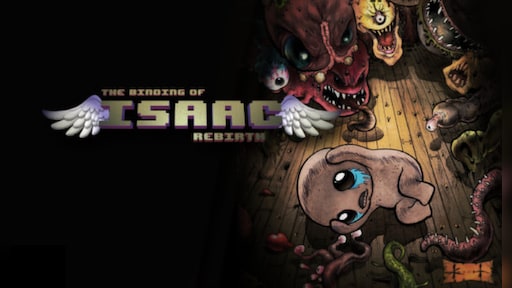
The Binding of Isaac: Rebirth
Release Date: November 04, 2014
Genres: Shooter, Puzzle, Role-playing (RPG), Adventure, Indie, Arcade
This is useful if you want the game to fill the screen while still being easier to alt-tab from, stream, record, or use on a multi-monitor setup.
Where to find options.ini
The location depends on which version or expansion you are playing. On Windows, check your Documents folder:
| Version | Typical Windows Folder |
|---|---|
| Rebirth | Documents\My Games\Binding of Isaac Rebirth |
| Afterbirth | Documents\My Games\Binding of Isaac Afterbirth |
| Afterbirth+ | Documents\My Games\Binding of Isaac Afterbirth+ |
| Repentance | Documents\My Games\Binding of Isaac Repentance |
Open the folder for your version and look for options.ini. Before editing, make a quick copy of the file as a backup.
How to enable borderless fullscreen
Open options.ini with Notepad or another text editor. Then look for this line:
UseBorderlessFullscreen=0Change it to:
UseBorderlessFullscreen=1Save the file, close the editor, and launch the game again. If the game opens in windowed mode, press F or enable fullscreen from the in-game Options menu.
Worth Knowing: The F key toggles between fullscreen and windowed mode. Borderless fullscreen only matters when the borderless setting is enabled in the options file.
Optional: set your window size manually
If the game still opens at the wrong size, you can also adjust the window resolution in options.ini. Look for:
WindowWidth=1920WindowHeight=1080Set those values to match your monitor resolution, save the file, and relaunch the game.


What if borderless fullscreen still does not work?
If the built-in setting does not behave properly, you can try a borderless-window tool. Some players use dedicated utilities for Isaac, while others use general borderless gaming tools. However, third-party tools should only be downloaded from trusted sources, and they may not work with every expansion, mod, or Steam setup.
| Method | Best For |
|---|---|
| options.ini edit | Best first option. No extra software required. |
| F key fullscreen toggle | Quickly switching between fullscreen and windowed mode. |
| Third-party borderless tool | Useful only if the built-in borderless option does not work correctly. |
For most players, editing UseBorderlessFullscreen in options.ini is the cleanest solution.