




Running into Marathon error codes? Whether it’s a server outage, connection issue, or corrupted game file, these errors can ruin a high-stakes extraction run. This guide explains the most common Marathon error codes, what causes them, and how to fix them quickly so you can get back into the match.
TL;DR – Quick Fix Checklist
- Restart Marathon
- Check Bungie server status
- Restart your router
- Update GPU drivers and OS
- Switch to wired internet
- Verify game files (Steam)
Table of Contents
General Fixes for Most Marathon Error Codes
Many Marathon errors have similar causes, usually related to server issues or network problems. Before troubleshooting specific error codes, try these quick fixes:
- Restart Marathon
- Check Bungie server status and maintenance schedules
- Check your ISP for outages
- Restart your router
- Restart your PC, PS5, or Xbox Series X
- Update your operating system and GPU drivers
- Use a wired Ethernet connection
Common Marathon Error Codes Explained
| Error Code | Cause | Fix |
|---|---|---|
| Basil | Basic disconnect from server | Log back in and check server status |
| Broccoli | GPU not detected or driver crash | Update GPU drivers and check hardware |
| Ginger | Teammate disconnect during matchmaking | Have the player reconnect |
| Paprika | Connection error similar to Basil | Reconnect and check for maintenance |
| Marmot | Corrupted game files | Verify files or reinstall the game |
| Tapir | Server maintenance or downtime | Wait for servers to return |
| Weasel | General network issue | Improve internet connection |
How to Fix Specific Marathon Error Codes
Error Code Basil
This error usually indicates a simple server disconnect. Logging back in often fixes the issue.
If the problem repeats:
- Check Bungie server status
- Look for maintenance announcements
- Submit a Bungie help forum report if a numeric code appears
Error Code Broccoli
This error happens when the game cannot detect your GPU, often due to driver crashes.
Fixes:
- Update GPU drivers
- Update your operating system
- Ensure the GPU is correctly installed
- Restart your PC
Error Code Ginger
Ginger appears when a player disconnects during matchmaking, preventing your crew from entering the match.
Usually this error is harmless unless it happens frequently.
Error Code Paprika
Paprika works similarly to the Basil error code and usually indicates a connection interruption.
Fix:
- Restart the game
- Check Bungie server maintenance
- Report the issue if it continues
Error Code Marmot
Marmot occurs when game files become corrupted.
Steam Fix
- Right-click Marathon in Steam
- Select Properties
- Open Local Files
- Click Verify Integrity of Game Files
Console Fix
- Restart your console
- Clear cache or rebuild the database
- Reinstall the game if needed
Error Code Tapir
This usually means Marathon servers are down for maintenance.
Check Bungie’s official server status page to confirm.
Error Code Weasel
Weasel is one of Bungie’s most common networking errors.
It usually indicates:
- Poor internet connection
- ISP issues
- Logging into the game on multiple platforms
What Happens if You Disconnect in Marathon?
If you disconnect from a match:
- Your character stays in the game
- You cannot control them
- Your team must protect you
- If enemies find you, you may lose all your gear
If you reconnect quickly, you can rejoin the match and continue the run.
However, if the disconnect was caused by Bungie server issues, reconnecting may not be possible. Bungie may attempt to return your starting gear, but it’s not guaranteed.
Final Thoughts
Most Marathon error codes are temporary connection or server issues. The fastest way to solve them is usually checking Bungie server status or restarting the game.
If errors persist, Bungie’s help forums are the best place to confirm whether the issue is affecting other players.
Ready to Jump Back Into Marathon?
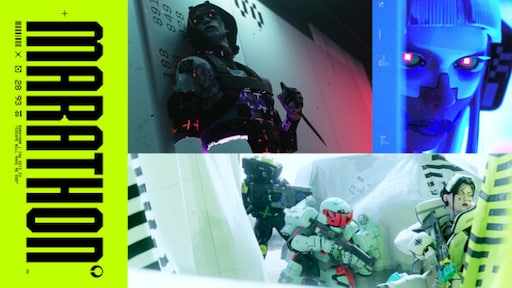
Marathon
Release Date: March 05, 2026
Genres: Shooter